Table of Contents
Installation and Usage
- Print Control - SpiritWeb
- Label Design - Designer
- Label Printing - SpiritLabel
- Registration Code Authorization
- Membership Authorization
- embeded Javascript
Development Manual
- JS API
- Dynamic Link Library
- REST API
- Third-party Website Integration
- Android Native SDK
- H5 APP
FAQ
Label Designer - SpiritDesigner User Manual
SpiritDesigner (Label Designer) is the core component of PrintSpirit, supporting label editing with complex elements including text, tables, barcodes, QR codes, Qrcode, PDF417, etc. Features element alignment, drag-and-drop, scaling, ruler guides, layers, and WYSIWYG editing. Simple to use yet powerful, it allows effortless creation of various labels without training, ensuring consistent output across devices. Supports variables and automatic sequence management for batch barcode generation. Available in online, desktop, and server editions, with third-party integration APIs for seamless integration into existing information systems (both web and desktop client modes).
Special Note: SpiritDesigner is extremely intuitive. You can start using it immediately without reading this manual. Return to specific sections only when needed.
Important: SpiritDesigner Online Edition works directly in browsers but we recommend installing SpiritWeb Print Control for print testing during design.
What is a Label Template?
A label template contains fixed content and variable fields. Variables like product ID, serial number, recipient, sender, and price can be dynamically populated during printing via APIs for batch processing.
Interface
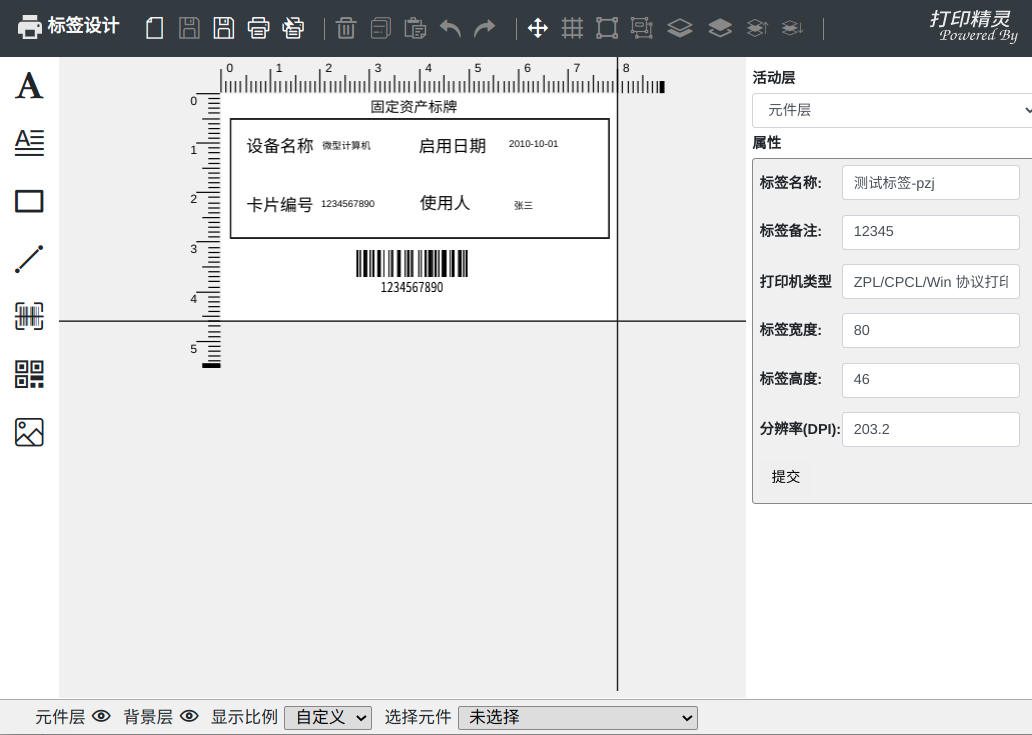
Label Area
The central area displays the current label design with measurement rulers. Create new elements or modify existing ones here.
Design Rulers
Rulers use millimeters as units. Use mouse wheel to zoom in/out.
Layers
Labels have two independent layers:
- Background Layer: For static elements
- Element Layer: For editable content
Elements on different layers don't interfere. Deletion on one layer won't affect the other.
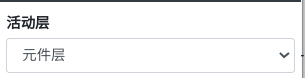
- Select active layer (only elements on active layer can be modified):
- Toggle layer visibility:

- Move selected elements between layers:
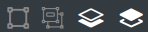
Toolbar
Top toolbar contains four functional groups:
- Template Management: New, Save, Print, Batch Print
- Element Editing: Delete, Cut, Copy, Undo, Redo
- Element Management: Align, Group, Layer Order
- Element-Specific Tools: Text size/direction (context-sensitive based on selected element)
Element Panel
Left panel contains element creation tools:
- Single-line Text: Positionable, rotatable, font customization, supports variables
- Multi-line Text: Multi-line input with left/center/right alignment
- Rectangle: Adjust position, dimensions, and border width
- Line: Define start/end points and thickness
- Image: Position and resize images
- 1D Barcode: Supports Code128A/B/C/Auto, Code39, Code93, ITF25, EAN-13, EAN-8, UPC-A/E, etc.
- 2D Barcode: QR Code, DataMatrix, PDF417 with size adjustment
Enterprise Custom Elements
Enterprise Edition users can pre-configure frequently used elements. Learn more: PrintSpirit Enterprise Edition
Properties Panel
Right panel shows properties of selected elements and layer selection.
Keyboard Shortcuts
- Left Click: Select element
- CTRL + Click: Multi-select
- CTRL-C: Copy
- CTRL-V: Paste
- DEL: Delete
- Arrow Keys: Nudge selected elements
Printing
Test Print
If printers are connected and SpiritWeb Control is installed, click  to test print your design.
Print dialog will prompt for variable data input (if template contains variables):
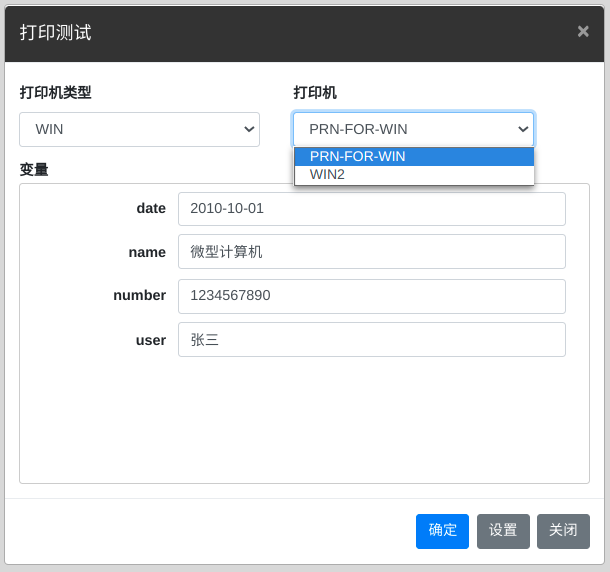
Batch Printing
Click  to launch SpiritLabel for mass printing using Excel or database sources. See SpiritLabel User Guide.
Variable Data Label Design
PrintSpirit supports dynamic data printing. Text, barcodes, and QR codes can use template variables as placeholders. During printing, variables get replaced with actual values, enabling data-label separation. Works seamlessly with SpiritLabel or SpiritWeb APIs.
Implementation Steps:
- Select an element (text/barcode)
- Double-click or click
 to open editor:
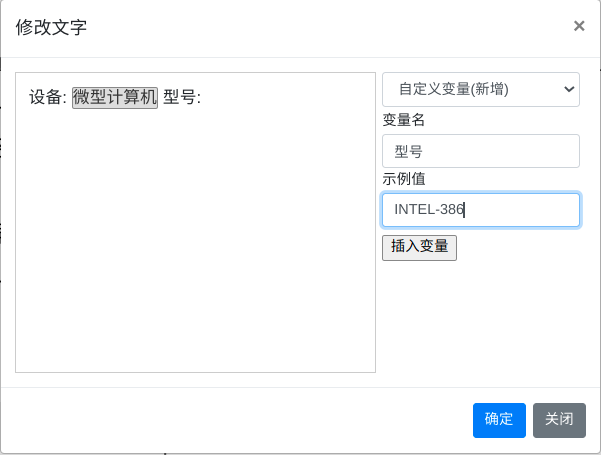
- In editor, mix static text with three variable types:
- Predefined Variables: Built-in values like date/time
- Auto-Increment Sequences: Auto-increments after each print (configurable prefix, digits, step)
- Custom Variables: User-defined names (alphanumeric/Chinese). Sample values display during design; actual values populate during printing.